Sub-Accounts
Introduction
TalkButton supports the concept of sub-accounts. Sub-Accounts are useful when you want to associate different payment methods with different Phone Numbers.
TalkButton is designed so that all of the Phone Numbers in a single account will be associated with a specific Stripe customer / payment profile.
If you are looking to resell the TalkButton functionality to your own customers, sub-accounts make this possible.
Active Account
Whenever you sign in to TalkButton it pops up at the top with the active account:

It's important that when you work with multiple sub-accounts, that you keep track of which account you are currently working in. This way you don't accidentally modify the wrong script, element, etc.
At any time, you are always signed into a single account / sub-account.
You can also see the active sub-account at the bottom left below your sign in info:

Manage Sub-Accounts
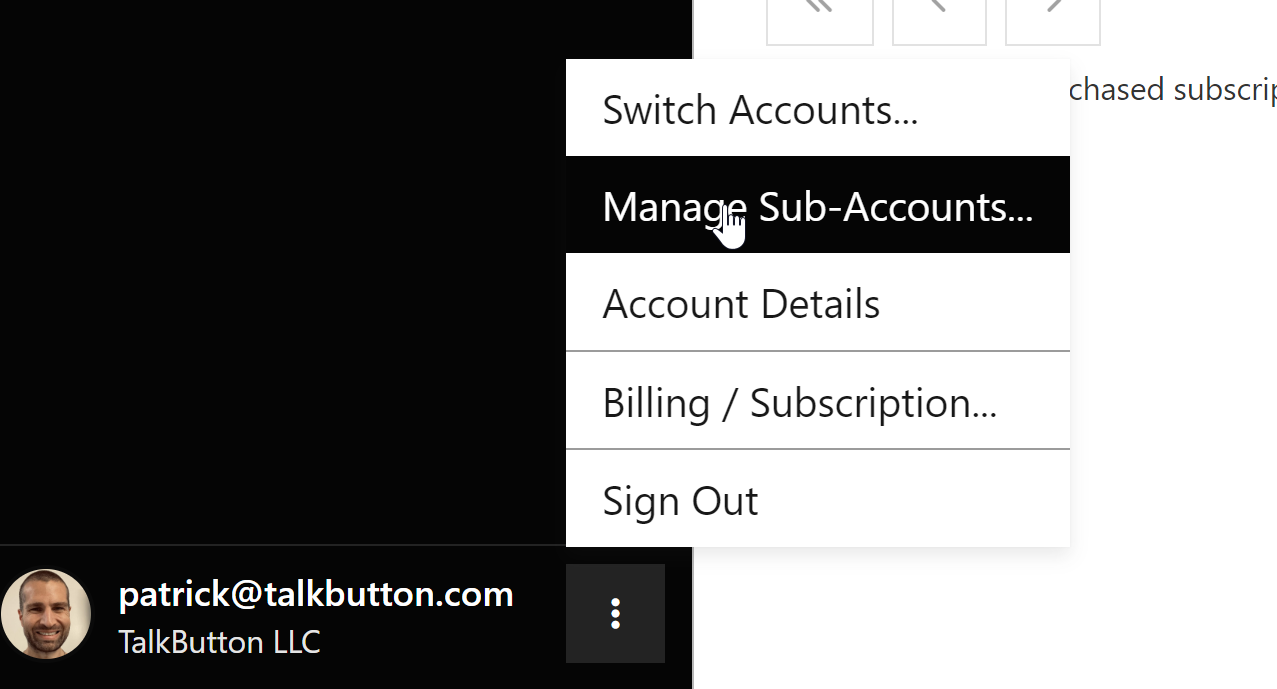
To manage the sub-accounts under the current active account, click on the User Profile menu and click on Manage Sub-Accounts:
By default, there won't be any:
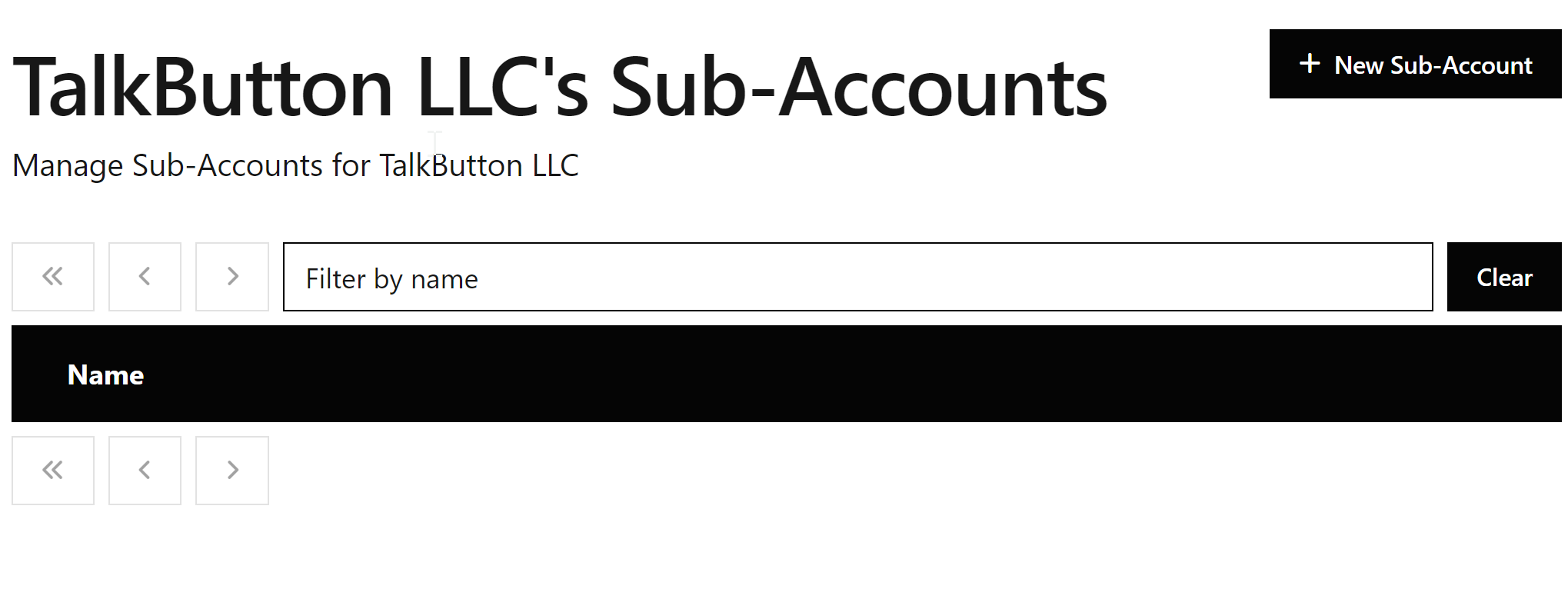
You can create a new Sub-Account by clicking the "New Sub-Account" button and giving it a name, e.g. Customer A:
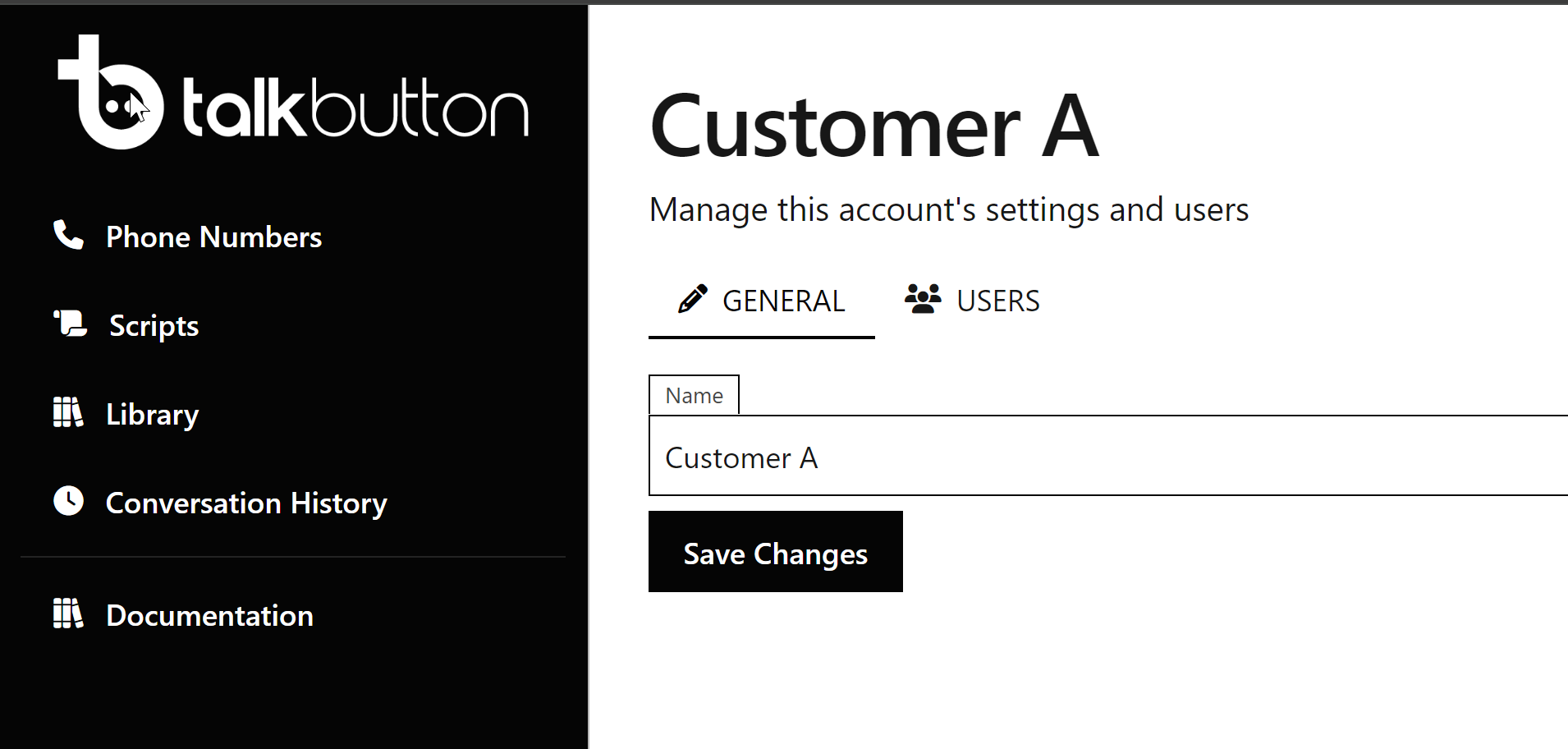
This creates a new sub-account with the name you specify, but please note, you are still signed into the original account you created it under.
Users
The Users tab on the Sub-Account details screen lets you invite new TalkButton users to manage this sub-account. Please note: the user must already have a TalkButton login and you must enter the email address associated with the login to invite them.
Switching Sub-Accounts
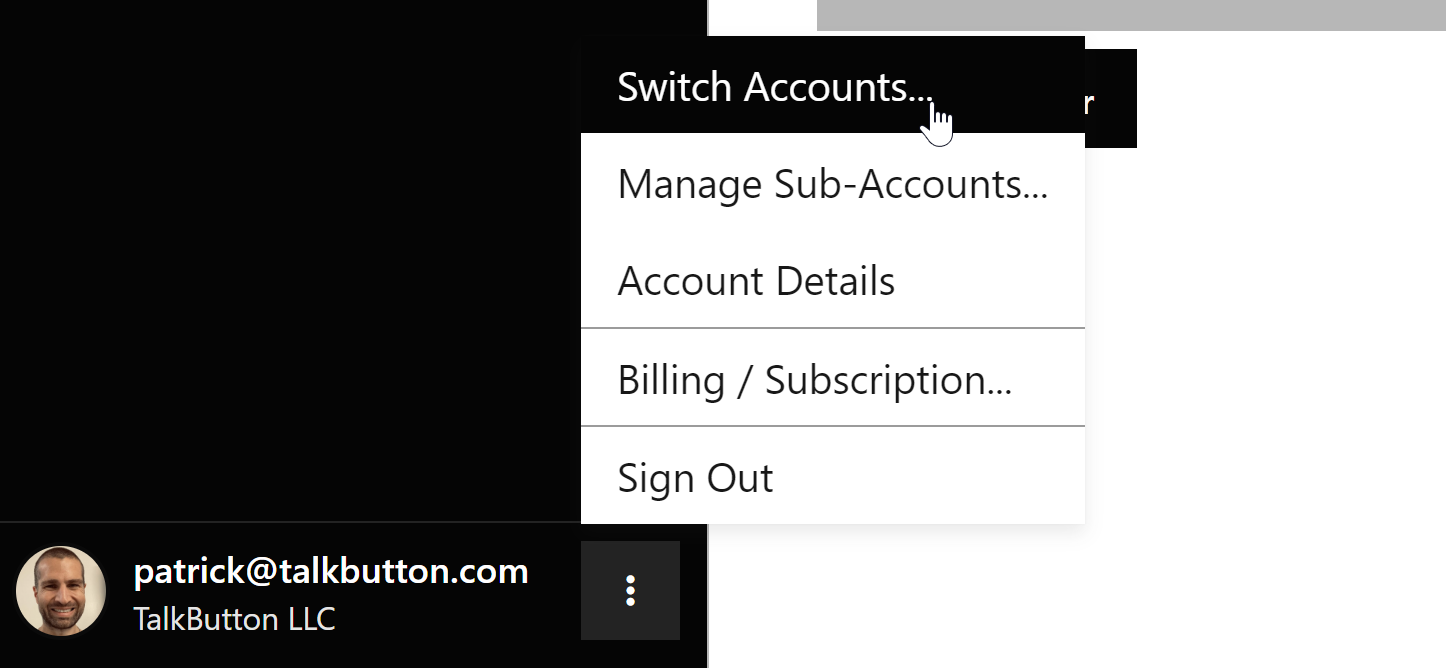
To switch to the new sub-account you just created, click on the User Profile menu and select the "Switch Accounts" option:
You should see the new sub-account you created listed under your home account:
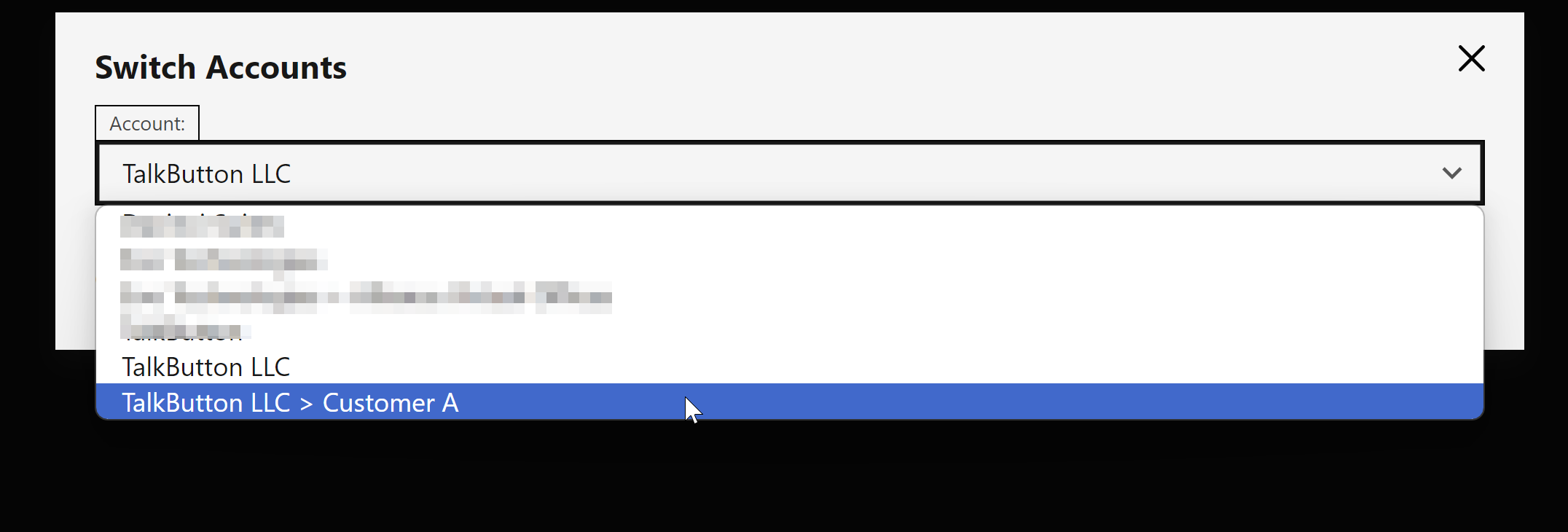
Once you select that account and click OK, you will see that the account you are signed into at the bottom left changes:

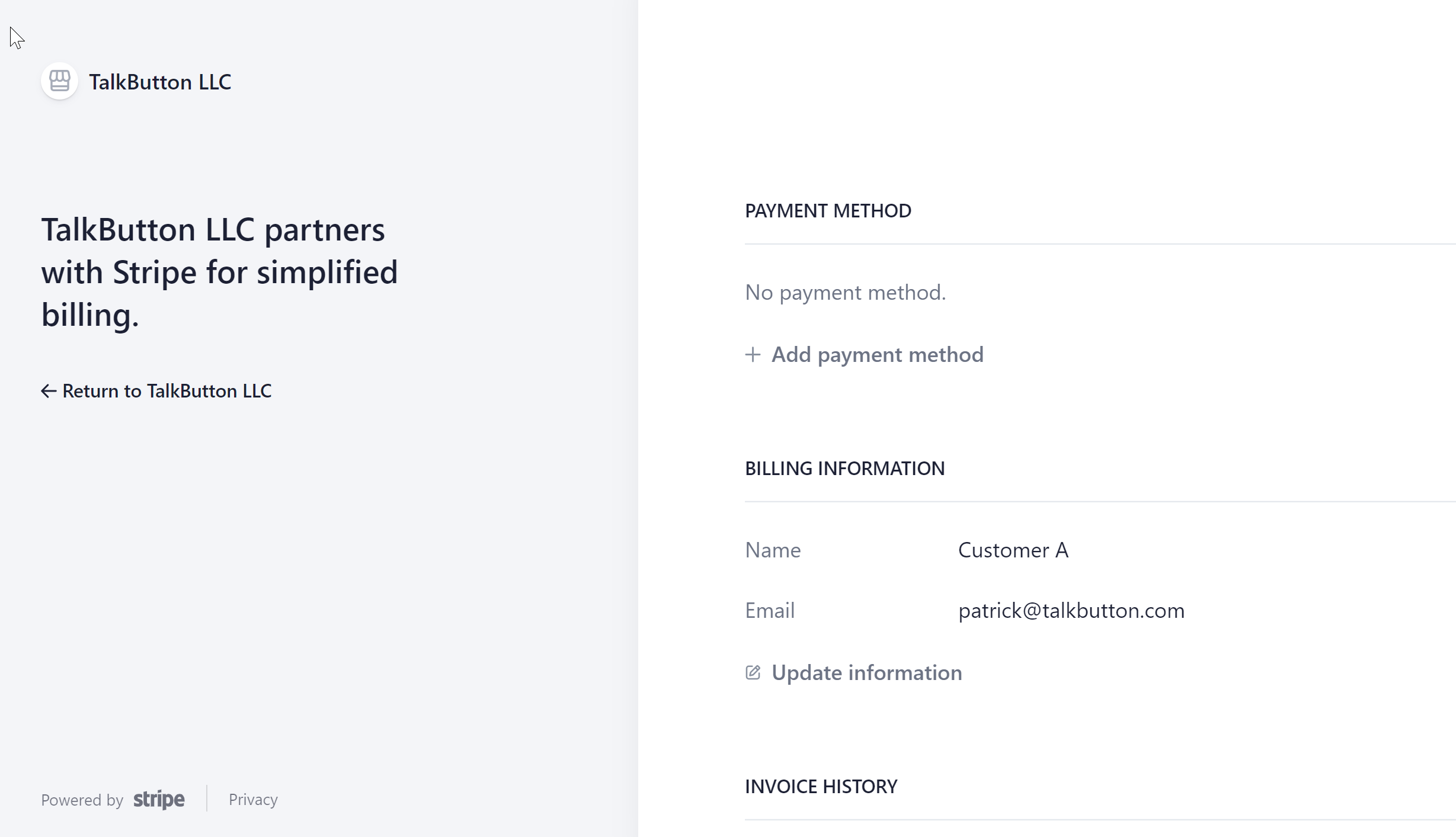
And the Stripe payment information under the Billing / Subscription link will be empty: